Showing posts with label Technology. Show all posts

Sunday, June 24, 2012

Sony Xperia Ion Review: Punching Above Its Weightclass

x-ion1

Short Version:

It’s been a long time since Sony released a smartphone in the U.S. market that had a chance of hitting it off with customers — too many of their recent releases have either been meant for niche markets (the Xperia Play 4G) or were expensive and unlocked (nearly all of these things).
That said, they’re looking to give it another go with the new Xperia ion, and it certainly looks like it could go all the way. It’s the company’s first LTE-enabled phone to land in the United States, it packs an impressive camera, and it’ll only set AT&T customers back $99. What’s not to like?
Read on for all the juicy details.
Features:
  • 4.6-inch 720p Reality Display and Mobile Bravia engine
  • Runs Android 2.3.7 Gingerbread
  • 1.5GHz dual-core Snapdragon S3 processor
  • 1GB of RAM
  • 16GB of onboard storage, can take up to an additional 32GB microSD card
  • NFC
  • 12MP rear-facing camera (records video in 1080p) with Exmor R sensor
  • 1.3MP front-facing camera
  • Runs on AT&T’s 4G LTE and HSPA+ networks
  • MSRP: $99 with a two-year contract, available June 24
Pros:
  • Rock-solid camera
  • Impressive 4.6-inch display
  • Aggressive price point
Cons:
  • Why does this thing run Gingerbread?
  • Finicky capacitive Android buttons
  • Peculiar button placement on the Ion’s side puts form ahead of function

Long Version

Hardware & Design:
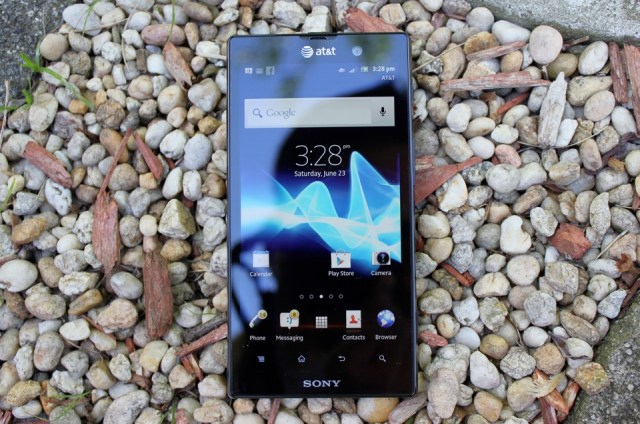
Looking at the Ion dead-on doesn’t leave you with much of an impression — the Ion’s face is clad in black, and is dominated by the 4.6-inch Reality Display. A terribly small speaker grill is nestled right along the device’s top edge, and a row of small capacitive Android buttons (more on them later) sit just above the Sony logo on the Ion’s chin.
In short, it’s not much of a looker from the front, and it lacks the quirky characteristics (think the color palette of the Xperia U and the nifty transparent sliver of the Xperia P) that helped some of its recent predecessors stand out in a crowd. Lack of style isn’t my only issue with the device’s face; that row of capacitive buttons took quite a bit of getting used to.
I’m not sure if it’s just because I have weird thumbs or what, but it can be a real struggle at times to register a touch on those buttons. They’re rather small (which doesn’t help things at all), and it often takes a more concerted press than one would expect to make things work the way they should. It may seem like a minor thing to get worked up over, but the effect is cumulative — having to touch the same button two or three times to make the device bend to my will for a few days isn’t too taxing, but it could make for some real headaches for people who actually take a chance and buy the thing.

Things get a little better upon turning the device over, which reveals a similarly understated design. Strangely though, I think this is where the Ion actually shines a bit. A handsome dark metal backplate (that’s sadly prone to attracting smudges) takes up most of the Ion’s rear end and is bound on the top and bottom by a pair of removable plastic caps that hide both a microSD and a micro-SIM slot. The only bit of branding back there is the iconic green Sony orb plopped right above the Xperia logo, and I frankly like it that way.
The other thing to note about the Xperia’s back is that it gently curves to fit your hand, something that helps hide its 11.68mm waistline. That curve coupled with that metallic backplate imbues the Ion with a sturdy, comforting feel in spite of the fact that it weighs in at only 4.9 ounces. That said, I take some issue with the way Sony crafted the sides of the device — the edges were designed in such a way that the power, volume, and camera buttons are mounted at an angle. The buttons themselves aren’t any harder to physically press, but their angled placement means they’re not quite where your fingers expect them to be.
This is especially prominent when trying to use the two-stage camera shutter button — my finger naturally gravitates to the highest point on the edge of the device, which often tricks me into applying pressure exactly where the shutter button isn’t. Again, it may seem like a minor thing to get worked up over (and users may get used to it in time even if I didn’t), but it’s annoying to see how Sony’s sense of aesthetics have made it slightly more difficult to use the phone the way I want to.
Software:
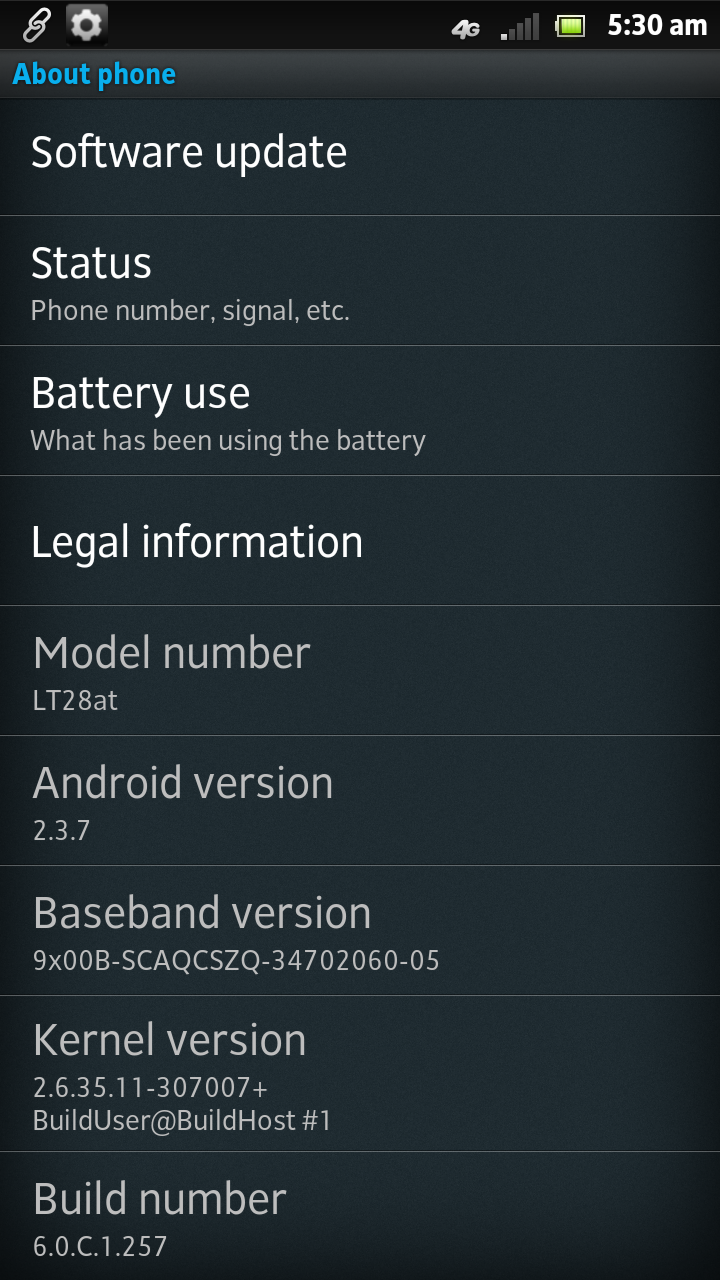
Gingerbread, I wish Sony knew how to quit you.
Perhaps I’m a bit jaded — after having used an Ice Cream Sandwich device as my daily driver for the past few months, going back to a lightly-tweaked take on Android 2.3.7 Gingerbread for nearly a week didn’t seem like a tempting proposition. Sony maintains that the device will gets its Ice Cream Sandwich update in due course (the Xperia S just got its own ICS update a few days ago), but really — it’s the middle of 2012 and Ice Cream Sandwich first hit the scene toward the end of last year.
It may just be one of the pitfalls that needs to be dealt with when mid-range devices are concerned, but I can’t quite shake the feeling that a solid handset isn’t quite living up to its potential because of Sony’s decision on this front.
Anyway, I’m not going to get too caught up in pondering the sort of device the Ion might have been, and Sony has done their part to try and freshen up this stale cookie. Longtime readers may know that I’m no great fan of what manufacturers do to the stock Android experience, but Sony thankfully hasn’t gone too crazy with their custom UI — save for a few particularly heinous widgets (Timescape and the large, love-em-or-hate-em Tools widgets in particular) I actually found myself enjoying some of what Sony came up with.
The app launcher in particular seemed nice and clean, with apps being arranged on multiple horizontal scrolling pages a la Ice Cream Sandwich. What made the whole thing even better was the fact that Sony didn’t completely load the device up with bloatware or plugs for their myriad media services — Sony only preloaded a few apps and at least some of them are rather useful.
Sony’s LiveWare manager app for instance is a scaled down version of Tasker, which prompts user-defined apps to spring to life when accessories like headphones or power cables are connected to the Ion. And just like clockwork, Sony’s Timescape social app makes yet another appearance here. The app pulls in tweets, Foursquare check-ins, Facebook status updates, and LinkedIn updates into a vertical stream of social information that’s at the same time visually striking and super smooth to scroll through. Just do yourself a favor and stay away from the fugly widget.
Of course, since AT&T is selling this thing, you can expect the full complement of carrier bloatware apps to round out the package. All the usual suspects are present and accounted for (I’m looking at you especially, Yellow Pages), but to my great relief, tapping a small grid icon in the bottom right corner of the app launcher lets you delete most of them quickly and without prejudice. Kudos to Sony for making that process dead-simple.
Camera:

One of the Ion’s biggest claims to fame is its 12-megapixel rear-facing camera, which makes the device second only to HTC’s Titan II for the title of “beefiest cameraphone” on AT&T’s store shelves. Thankfully, I’m pleased to report that Sony’s claims aren’t just marketing fluff — this is one of the nicer smartphone cameras I’ve used in quite a while.
But first, let’s address some of the mechanical bits. Holding down the two-stage shutter button while the phone is locked lets users jump straight into the camera app while the device is locked, which sounds great except for one thing — by default the camera app is set to snap a picture as soon as someone uses the shutter button to unlock it. That’s right, it just takes a picture as soon as the phone wakes up, which means that you’ll have no clue how well you’ve framed the shot or if the camera focused on the right subject until it’s too late.
Thankfully all that requires is a quick settings tweak, and the rest of the camera experience is quite solid. The process of auto-focusing and actually snapping a photo was awfully quick — just under three seconds to focus, shoot, and return to standby mode. Once inside the camera app proper, users can select from a number of different scene modes (though the default scene recognition mode is smart enough to accurately handle most situations) and shoot panoramas to boot, but there isn’t much in the way of manual controls outside exposure and metering settings.
Of course, all that would mean nothing if the photos didn’t turn out well. Fortunately, colors were bright and vibrant, though perhaps to the point of being slightly over-saturated at times (more on that in a moment). Low-light performance wasn’t too shabby either, but the Ion’s Exmor R sensor isn’t a miracle worker — there was still quite a bit of grain present in shots taken in darker locales. C’est la vie.
The Ion can also record 1080p video at 30fps, and results were generally quite nice — test recordings displayed plenty of detail, and additional features like image stabilization and the ability to light up the LED flash came in quite handy. The process isn’t entirely flawless though, as the camera tends to take a few extra moments getting into focus when you’re ready to begin shooting.
Now, about that over-saturation issue I was talking about — it’s not entirely the camera’s fault. It’s worth noting that the images look extra vivid on the device itself thanks in part to Sony’s use of their Mobile Bravia engine, and that their level of vibrance will vary once you move those photos onto other devices. And speaking of which…
Display:
Since the Ion is the first Sony smartphone I’ve worked with in a while, I wasn’t quite sure what to expect from its 4.6-inch, 720p Reality Display. As such, seeing the bright, crisp display come to life for the first time was actually a bit of a surprise — sure, it lacks the deep blacks seen on AMOLED displays but the LCD panel Sony’s using is no slouch (especially since at 342 ppi it beats the Galaxy S III and the iPhone 4S at the pixel density game). The display’s viewing angles are actually quite good, though prepare for the colors to wash out a bit the further you move away from dead center.
The screen’s performance in daylight seemed respectable at best. Since Sony doesn’t include an option to automatically set screen brightness, you’ll have to manage that yourself should you decide to venture into the outside world, and the screen tends to get overwhelmed unless brightness is cranked up full blast.
As I’ve mentioned before, Sony’s Mobile Bravia engine plays a significant role in how images and video appear on that sizable screen. With the Bravia option on (note: it’s on by default) colors were vibrant and vivid to the point of being slightly lurid at times — this was especially apparent in one of my test videos, where the Xperia ion tended to make a stage lit mostly in blue take on a notably purple cast.
It wasn’t necessarily a bad change (I actually think it gave the video some cinematic flair), but not everyone may enjoy the effects engine has. In addition to pumping up colors, the Bravia engine also sharpens the image, leading to the double-edged sword of slightly crisper images and video versus the potential annoyance of seeing more jaggies. Occasionally nuclear colors aside, I think leaving the Bravia engine on is generally a plus; it adds a bit of pop to the viewing experience, and it’s simple enough to shut down if it gets to be too much.
For a closer look at the difference, take a look at this image — the left side is a screenshot of a photo I took with the Bravia Engine off, and the right is a screenshot of same image with the Bravia Engine on (click to enlarge).

Performance:
The Ion’s spec sheet would’ve been considered top-tier just last year, but my how times have changed since then. We’ve since entered the age of the quad-core chipset (even though most of them don’t end up on U.S. soil), but the 1.5GHz dual-core Snapdragon S3 processor nestled inside the Ion’s curved frame still has plenty of game. The device seemed plenty responsive when put to the usual gamut of daily tasks — swiping between menus was buttery smooth, as was pulling down the notification drawer and scrolling through my innumerable contacts. Similarly, I had no trouble at all watching Top Gear reruns on Netflix or building obtuse structures in Minecraft Pocket Edition.
If you want to break things down numerically, the Ion managed to squeeze out an average Quadrant score of 2872, which roundly put to shame my trusty Galaxy Nexus (average: 1812). It’s still a long ways off from HTC’s ostensibly mid-range One S (generally around 4-5000 depending on the circumstances), but the Ion certainly has enough horsepower to be a daily driver for all but the most demanding users.
In terms of network performance, I’m loath to admit that I couldn’t latch onto an LTE signal in my particular corner of New Jersey (a problem that I imagine isn’t unique to me considering AT&T’s LTE network is only live in 41 cities), but I managed to pull down an average of 7.3 Mbps down and 1.3 Mbps up. It doesn’t sound great, but the Ion actually performed slightly ahead of other AT&T devices — namely an iPhone 4S and an unlocked Galaxy Nexus — I tested alongside it.
Though one of the Xperia Ion’s main draws is going to be that nifty camera, Sony is positioning it as more than just a media creator — it’s also a media hub. As you might expect from a company that launched the working group behind it, the Ion is DLNA certified, and it was a snap to get it linked up with my DLNA-compatible LG smart television and media server. From there, I was able to fire up the included Connected Devices app and sling my media onto the big screen. Streaming videos from my media server proved to be a breeze too, and it didn’t take long before Plex was serving up (dorky) content to the Ion.
If you’ve got a micro-HDMI-to-HDMI cable handy, you can also connect the Ion directly to your television at which point something very interesting happens. Once the connection is in place, the Xperia swaps its stock launcher for an upscaled version meant to be displayed on a television, allowing users to fire up apps and generally do
Provided you’ve got an HDMI-CEC (or SIMPLINK, or Viera Link, or whatever) compatible television, you’ll also be able to control the Ion with your television remote. The ability to take any compatible television and effectively turn it into a smart television set certainly has its appeal, and while it’s gimmicky and it’s fun, it’s hardly the kind of thing I’d want to use for any extended period of time.
When it comes to sound, the Ion is actually sort of a mixed bag. Call quality was generally very clear, but even with the volume cranked all the way up, I still had trouble hearing the person on the other end of the line. The same goes for the Ion’s main rear-mounted speaker — for a device that’s so centered around media, you would think that Sony would have bothered to pop a better speaker in the thing. Even at maximum volume (which, again, doesn’t seem that loud) the speaker produces sound with muddy middles almost non-existent lows. I’ll admit that I can’t be too surprised as it’s relatively rare to get an unabashedly good speaker in a smartphone, but I was a tad disappointed nonetheless.
Battery:
For better or worse (I usually lean toward the latter), Sony has opted to seal the Ion’s 1900 mAh battery under that black metallic plate I’m so fond of. Though the road warriors among you may miss the ability to swap out spare batteries as needed, the Ion does a fine job of chugging along throughout the day.
Since I started using the Ion as my go-to phone earlier this week, I’ve averaged about eight to nine hours of consistent use each day — checking my email, firing off text messages, watching the same clip of a tap dancing broadway starlet over and and over — you know, my usual routine. If you’re not the sort to check your phone at every possible moment, you can expect to squeeze closer to 13 hours out of the thing before needing to juice up again.
If you’re planning to binge on some video content though, expect that figure to plummet to roughly six hours, and that’s if you’re mighty careful with all the rest of your settings.

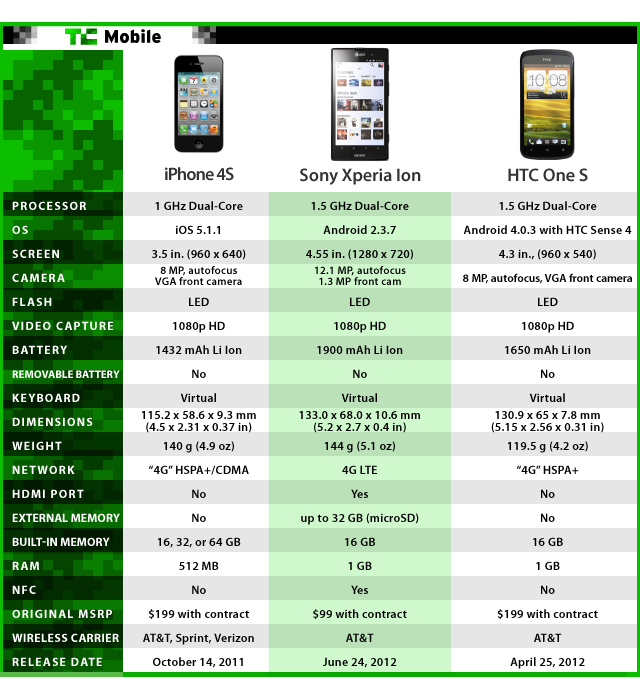
Head-To-Head With The HTC One S And iPhone 4S:

Conclusion:

For all of the Ion’s foibles (and there are quite a few), there’s still plenty to like here. The Xperia Ion definitely leans to the more premium end of the mid-range spectrum, and it tries valiantly to punch above its weight with features like its solid camera, media functionality, and great display. Its price tag too makes a pretty compelling statement — there are far worse things you could get for $99.
Ah, but the real question is whether or not it’s worth your money. I was originally going to say that if you’re in the position where you really can’t justify spending an extra $100 on a top-of-the-line smartphone, then the Ion will do in a pinch. Now that I’ve thought about it a bit more, that’s selling the Ion a bit short.
Despite how harsh I may have been with some of my comments, I really do think the Ion is a good phone. The problem here is that like with many mid-range phones, the Ion straddles that very fine line between “good” and “great,” and it doesn’t seem to have quite enough oomph to push it over the edge. Strangely enough, this may well change down the line — with a few minor tweaks and perhaps a helping of Ice Cream Sandwich, the Xperia Ion may eventually grow to become a must-buy, but it’s not quite there yet.

Saturday, June 23, 2012

Google Doodles Alan Turing, the father of computing

Today, marks the 100th anniversary of Alan Turing, who is universally considered the father of modern day computing. And in true Google, style, the search giant has honored the legend, on it home page with a trademark doodle.
Turing, in particular is a role model for a number of Google engineers and the doodle honoring him is an interactive doodle, which requires users to break a set of six codes and each successful code break adds color to a letter of the greyed out Google logo on the doodle.
The British mathematician laid the foundations for mathematical foundation and limits of computing. He was also a key contributor to the Allied cryptanalysis of the German Enigma cipher during World War II.
He was born on June 23, 1912 in London, England and he graduated with mathematics from King’s College, University of Cambridge in 1934.
He joined the British government’s Code and Cypher School in the second world war and later he was made an officer of the Order of the British Empire for helping break the cryptic messages used by the Germans during the war.
After the second world war the National Physical Laboratory (NPL), where he designed the electronic computer. Eventually, he quit the NPL to head the Computer Machine Laboratory, where he designed the Ferranti Mark I, which was the first electronic digital computer to be commercially available.
Alan Turing was also a pioneer of in the field of Artificial Intelligence (AI) and in 1950 he proposed the Turing test to extrapolate whether a machine can think.
His career went through many ups and downs and he hit a plateau when he was convicted of gross indecency under laws, which banned homosexuality and was sentenced to chemical castration involving a series of injections of female hormones.
After losing his security clearance he was unable to work which lead to committing suicide at the age of 41 in 1954.
The genius of the man cannot be underestimated and frankly but for his work, we perhaps would have been living in a very different world. Google has also dedicated a whole blog post to his work, make sure to check out the link.

Facebook ads make their way to Zynga's site

(Credit: Screenshot by Donna Tam/CNET)
Zynga users may have noticed something unfamiliar on the Web site -- Facebook ads have crept over to the gaming platform's site, filling the space that used to house Google ads.
The change was first noticed by Inside Facebook and it has the media speculating up a storm about whether this is the beginning of Facebook's advertising service empire.
Now when you connect with Facebook on Zynga.com, you'll see personalized ads and sponsored stories just like they appear in Facebook, the social network says. According to Facebook, you'll see only sponsored stores about activity that's been shared with you, and you can remove ads you don't like by clicking the X in the corner, in the same way that you can on Facebook. Also, Facebook won't share your information with advertisers, the company said.

 
  Facebook has been building out its various advertising tools. It recently unveiled Facebook Exchange -- which creates targeted ads based on users' activity on the Web -- but swore that it wasn't an ad network. Facebook has not commented on whether it would be rolling ads out to other sites or if this is a Zynga-only endeavor.
But, as All Things D points out, a Zynga/Facebook advertising partnership isn't really a surprise. Zynga's S-1 filing last July noted a revenue sharing agreement where Facebook's ads would appear on Zynga properties.

Tuesday, January 3, 2012

Toy racetrack too cool to be real

(Credit: Japan Institute of Science and Technology (aka Sony))
Quantum superconductors are an amazing thing.
With the right materials cooled down to below -301 degrees Fahrenheit, you can create a superconductive magnetic field known as the Meissner effect that is capable of floating stably in midair.
Over the past year, we've seen the effect demonstrated with a floating crystal wafer and a skateboard, and discussed as a real-world solution for high-speed rail.
With all that said, it seems completely plausible that some bored science students might construct a small-scale quantum superconductive racetrack styled after the '90s PlayStation game Wipe'out. I mean, why not?
Well, as badly as I want to believe in the above piece of awesomeness, it is likely a hoax. The giveaways? Well, Sony Entertainment is credited as a copyright holder on the video, who just happen to be releasing a sequel to Wipe'out in February.
Also, the "Japan Institute of Science and Technology" and the logo shown on the video are an imitation of the real-world Japan Advanced Institute of Science and Technology. And finally, a careful look at the vapor trails of these two futuristic slot cars reveals some crafty CG work.
Still, as far as corporate-funded viral hoax videos go, this one is pretty great. Just don't hold your breath for a superconductive toy racetrack set popping up at Toys "R" Us anytime soon.

Modai concept phone wants to be your friend

(Credit: Julius Tarng)
Today's smartphones are already pretty smart, but New York-based designer Julius Tarng thinks they can be smarter.
Imagining a mobile device that's more human than machine, Tarng came up with a concept phone called the Modai that learns from your behavior and adapts itself to different environments.
The Modai can provide information based on your location.
(Credit: Julius Tarng)
For example, it would know when you're at work and when you're at play, and adjust the contents of your home screen accordingly to present the most relevant information at that time.
Tarng also sees the Modai giving contextual prompts based on location, so if you're at a bus stop or out grabbing lunch, the phone could help out by displaying a bus schedule or today's lunch specials while you wait.
With more use, the Modai learns more about you and can even try to fix your bad habits. Late for a meeting again? The Modai knows this and will set your alarm for earlier next time, so you're not tardy for the party.
The Modai has other cool party tricks up its sleeve. A muscle-wired Peelstand on the back of the phone enables it to move and alert you to new messages, calls, or alarms. When it needs more juice, the cover on the phone's charging port will automatically open, so you can connect to an outlet.
You can check out more of the Modai's functions on Tarng's Web site, as well as some of his other concepts. Tarng, a former intern at Nokia and Kodak, is currently a designer at Smart Design.
(Via Ubergizmo)

Would you wear a TV?

David Forbes is a man with a fashionable vision.
The TV vest originally evolved from the video coat, as seen here.
(Credit: David Forbes)

After completing a working video coat with a mega assortment of color LEDs, Forbes has moved onto a smaller, slightly more practical application: an LED TV vest.
The $20,000 array is no slouch, using custom-made circuit boards that pump nearly 5 gigabits of data to 14,400 red, green, and blue LEDs.
Surveillance video technology limits the resolution of the video so content is watchable on the flexible vest, which displays content at 160x120. Battery life clocks in around 90 minutes, and runs off lithium-polymer batteries commonly used for remote control hobby vehicles.
A wearable TV sounds like something from Daft Punk's latest fashion line.
The evolution of a wearable TV is a fascinating journey into the impractical imagination of Forbes, an electrical engineer who resides in Arizona. In his video coat manifesto, one quickly learns that the true inspiration for these unique displays is one of the biggest and brightest events in the U.S.: The Burning Man Festival.

Friday, December 23, 2011

Block ads with AdBlock Plus

Before and after shots of AdBlock Plus, using the right panel of my Facebook page as an example.
(Credit: Matt Elliott/CNET)
AdBlock Plus is a Chrome or Firefox extension that does just what its name suggests.
Odds are you have become skilled at ignoring Internet ads. But every year, advertisers get more invasive creative at inserting ads in places where they are harder to ignore. As soon as next month, for example, ads will appear in your Facebook newsfeed. It's too soon to say whether AdBlock Plus will remove these forthcoming newsfeed ads, but the extension does an admirable job of removing the current advertising from Facebook and other sites.
Simply install the extension (here for Chrome or here for Firefox) and it automatically starts running (Firefox requires a restart first). In Chrome, you'll know it's running because a small ABP stop-sign icon gets added to the right side of your URL bar. If you consider that an ad, you can remove it in AdBlock Plus's settings. Go to Window > Extensions. Click on the new tab that opens, click the Options link for AdBlock Plus, and choose the General tab, where you'll see a check box for Show icon in address bar.
In Firefox, this icon gets added to the bottom-left corner of your browser window. And to get to AdBlock Plus settings in Firefox, the path is Tools > Add-ons > Extensions.
In Chrome, you can click the AdBlock Plus icon in the URL bar to create exceptions for sites when you don't want to block ads.
(Credit: Matt Elliott/CNET)
This little icon is useful, however, if you'd like to create exceptions. If there is a site where you don't mind the ads or would actually like to see them, you can easily disable AdBlock Plus for that site. (In Facebook, for example, AdBlock Plus removes the Ticker along with the ads from the right panel.) To do so, in Chrome you click the stop-sign icon and uncheck the box for Enabled for this site. The icon will be grayed out and ads will return for that site. In Firefox, you click on the icon in the bottom-left corner and choose one of the disable options for removing ads from the current page you are viewing, from all pages on the site you are currently visiting, or disable the extension altogether.
I installed it on both Chrome and Firefox, and the correct English language filter (EasyList) was chosen for me. Filters for other languages can be found on the Filter lists tab of the AdBlock Plus' Options page.
With AdBlock Plus running, you'll see a blank spot where an ad would be on some sites, but on others like CNET, the elements on the page shift around so that the absence of advertising isn't as conspicuous. In Firefox there is an option to hide placeholders of blocked elements, but it doesn't seem to do anything.
For most people, the default settings will suffice. Ads go away and, in my experience thus far, performance is unaffected.

How to track your packages with Android

Are you afraid to leave your home because you're expecting a package? With mobile package-tracking apps, you can track your packages right from your Android phone so you can relax and go get lunch, run an errand, or take your kids to the park. When your package is delivered, you'll know when to come home.
All the major shipping companies have mobile apps. UPS, FedEx, DHL, and USPS have basic tracking components in their apps (DHL's app tracks freight only). Most of them also allow you to find local shipping locations as well. However, the carrier apps tend to lack advanced features, like tracking multiple packages and delivery status alerts.
Package tracking Android apps (Credit: Screenshot by Ed Rhee)
For more-advanced features and multiple package tracking, we recommend checking out a free Android app called Parcels.
Parcels Android app (Credit: Screenshot by Ed Rhee)
Parcels allows you to track multiple packages from multiple carriers (international carriers, too) and alerts you when the status of a delivery changes. It's very simple to set up and use. You can also view the delivery path of your package via Google Maps and check out tracking details directly from the carrier's Web site, if you so choose. The color-coded list, icons, and carrier labels make it easy to check packages and is a pleasure to use.
With the holiday season upon us, now is a great time to try out Parcels. It sure beats checking individual e-mails all day long and visiting each carrier's Web site.

Sunday, December 18, 2011

MIT grad launches Curisma, a social network of geeky gifts and gadgets

The gift-giving season is upon us! While we’ve given you Nerd Holiday and the Ultimate Robot Gift Guide, we’ve got one more nerdy trick up our sleeves for inspiration: Meet Curisma, a social media inspired network of geeky gifts and gadgets.
Curisma bills itself as a new way to discover products you love through people like you. The site launched in beta this past October as a recommendation engine for cool gadgets and tasteful people to follow. The name Curisma is a blend of curiosity, curating and charisma. “It’s curious people curating charismatic products,” explains Curisma’s CEO Fatma Yalcin.
I first met founder Yalcin (pictured below) at the launch of the NY Angel Dinner Series, an event hosted by Victoria Song of Flybridge Capital Partners. Yalcin is a Turkish entrepreneur with an MBA from MIT who met her co-founder Eugene Gorelik in a class called Web 3.0.
229634 644842877911 37002604 35021287 6700698 n MIT grad launches Curisma, a social network of geeky gifts and gadgets
The company is currently bootstrapping it. Yalcin tells me that she’s interested in partnering with search and media companies and having those companies set up pages on Curisma. For example, The Next Web would be a brand you would follow for curated tech gadgets.
While lacking the aesthetic sophistication of competitors Pinterest and Svpply, it’s hard not to draw comparisons in terms of functionality. Part of the reason being that Yalcin was an intern at Svpply when the company was based in Boston, MA. Yalcin says the company will expand into other verticals after gadgets and hire designers to spruce up the site in the coming months. “For now, it’s just two geeky co-founders coding away,” says Yalcin.
We found a few really awesome gift ideas while perusing Curisma today. Check them out below!
Keybird
Screen shot 2011 12 18 at 4.20.18 PM 520x230 MIT grad launches Curisma, a social network of geeky gifts and gadgets
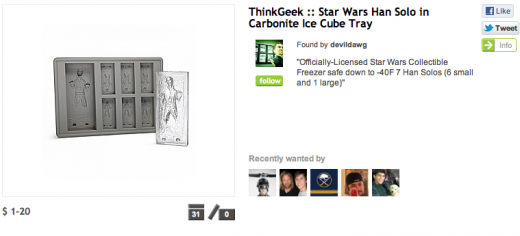
Han Solo Ice Tray
Screen shot 2011 12 18 at 4.21.13 PM 520x236 MIT grad launches Curisma, a social network of geeky gifts and gadgetsYoda USB Protector
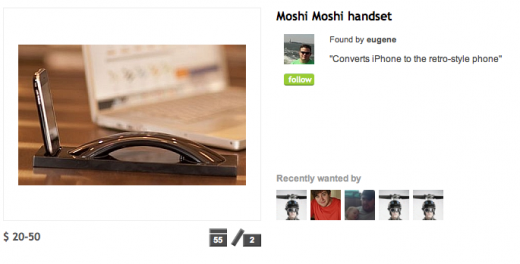
Screen shot 2011 12 18 at 4.22.00 PM 520x268 MIT grad launches Curisma, a social network of geeky gifts and gadgetsMoshi Moshi handset
Screen shot 2011 12 18 at 4.23.29 PM 520x264 MIT grad launches Curisma, a social network of geeky gifts and gadgets
➤ Curisma

BleuFlamme Lets You Make Your Own Custom Shirt In 3D


If there’s one thing the world needs it’s a service that lets you build a shirt using 3D rendering technology. Sure we could use cars that run on water and world peace, but let’s get the little things out of the way, right?
Thankfully, there’s BleuFlamme, a website created by a gaggle of eight engineers who have dedicated their lives to the sale of custom shirts.
Building a shirt is fairly simple: you pick a style, a collar, some fabric, stick it all together, and they have it made in Hong Kong and shipped to you. They start at $99 each – a bit steep, but it sure beats a trip to Cameron Road. We’ve covered a number of these custom shirt sites, most recently J Hilburn and all of them seem to be improving upon the age old custom tailoring model. The question, then, is whether this model needs disruption?
There are plenty of folks out there who want custom clothing. I’m no clothes-horse but a nice custom shirt looks good. $99 good? Hey, if you’ve got the IPO cash, why not flaunt it?
BleuFlamme isn’t sitting still and will be improving their service over the next year. Quoth founder Jin Takahito:
This coming Q1 we will release a rotatable 3D shirt model so you can preview your shirt design from all angles – implemented in pure HTML5 – something from a technical standpoint, is very hard to accomplish but in return provides better user experience from across any browsers any device. I will also introduce Community Gallery of shirt designs contributed by our users where you can get some initial inspirations when designing your own dream shirt.
He also notes that “We are pushing human civilization forward as we speak,” which is a pretty noble goal, although a bit shortsighted. We’re going to need custom shirts when we leave to civilize species on other planets, Jin. Will you be there for us?

Thursday, December 15, 2011

Your complete guide to Facebook's Timeline

(Credit: Screenshot by Sharon Vaknin/CNET)
Are you ready for change? Facebook has once again redesigned your favorite social network, changing privacy options, adding new features (like the ticker), and killing off profiles in favor of Timelines.
Although we can't help you accept change (it's always tough), there's a great selection of tutorials, tips, and tricks that we put together to help you through the transition.
Find out everything you need to know about the redesign, including how to configure your Timeline, adjust hidden privacy options, and tweak Facebook's features.

Getting started

Five things to know about the new Facebook
Facebook is getting major changes within the next few weeks that will alter the way you socialize online with friends. Here's what the new Facebook interface will look like.
Get started with the new Facebook Timeline
Find out everything you need to know about your new profile, how to configure your Timeline, and how to keep your privacy in check.
How to use Facebook Music
Mark Zuckerberg wants you to have "serendipitous experiences" with the new Facebook. If you're ready for the experience, we'll show you how to use Facebook Music.

Tweak some features

How to restore Facebook's Most Recent news feed
By creating a list, you can bring back your Most Recent news feed.
How to hide the Facebook ticker
Facebook added a sidebar ticker to the right of the newly redesigned News Feed. Learn how to remove it in Chrome and Firefox.
Organize your Facebook friends in Lists
Google+ made it dead simple to organize contacts into Circles, and Facebook has followed suit with its revised Lists feature. Learn how to easily organize your friends into groups.

Adjust privacy settings

Five hidden Facebook privacy settings
With Facebook's design overhaul comes a host of new privacy settings that can protect information you'd rather keep private, and prevent third parties from accessing your information.
How to adjust app and Web site permissions on Facebook
Now's the time to check up on any apps or Web sites you authorized in the past, since they may have more access to your profile than you'd like. You can also stop sharing when you're playing certain games with groups or all friends.
How to disable autotagging on Facebook
Facebook's privacy controls are present but may not be set to your liking. Take control of who can tag you in pictures, posts, and places.
Stop or limit Spotify sharing on Facebook
You can stop Spotify from sharing on Facebook via Spotify's preferences, or you can limit who sees the songs you're listening to via Facebook's privacy settings.
How to enable private listening on Spotify
Spotify just rolled out a way to listen to your favorite, albeit embarrassing, music without having it broadcast for all the world (or Facebook) to see.

Look Ma, no hands! Google lands patent for robot car

In the wild: Google's self-driving car spotted on a California freeway.
(Credit: Wayne Cunningham/CNET)
Google has added one more thing to the list of things it can do over the Web: tell a car where to drive.
The Internet giant earlier this week was granted a patent for a method of controlling an autonomous vehicle. Specifically, it details how a vehicle can transition from being human-driven to autonomous mode.
A car could, for example, drive to a specific location and based on a visual indicator on a "landing strip," such as a bar code or radio tag, the car would then transition to autonomous operation. One could imagine, for example, bringing a car to a roadway dedicated to autonomous vehicles where the transition would take place.
In a corporate blog post last year, Google said that it has hired some of the top autonomous-vehicle engineers to enhance the state of driverless cars. It isn't very specific about how this advances its business. But distinguished software engineer Sebastian Thrun said that the company's goal is to "help prevent traffic accidents, free up people's time, and reduce carbon emissions by fundamentally changing car use."
The patent describes a method where a vehicle will drive to a reference indicator (seen as a bar code) to get driving instructions over the Internet.
(Credit: Screen capture by Martin LaMonica/CNET)
Engineers have equipped Toyota Priuses with sensors and communications that send large amounts of data back to Google's data centers to analyze and make driving decisions. In 2010, Thrun said it had logged over 140,000 autonomous miles.
In its patent, Google engineers detail the method for how sensors would find a marker to switch to autonomous mode and receive instructions from an Internet address over a wireless network. It also describes the design of an onboard computing device capable of handling the information needed for autonomous operation.

Wednesday, December 14, 2011

How to add QR codes to your photos

QR codes are cool, but they haven't quite caught on en masse yet, because finding cool uses for them have been challenging.
One popular use for QR codes is printing them on business cards. Sharon Vaknin also showed you a clever way to make a personalized QR code gift tag. In this tutorial, we're going to show you how to add a QR code to a digital photo.
Digital photos contain lots of data in them, like locations, dates, and camera type, but once they're printed, you're left with just the photo. With a QR code, you can add Web addresses, dates, locations, or just about any other detail you want to embed in the photo. Here's how
Generate and save your QR code
Go to a free QR code generator Web site, like http://zxing.appspot.com/generator, and create your QR code. We recommending generating at least a medium-size bar code. Once the code's been generated, save it to your computer.
QR code generator (Credit: Screenshot by Ed Rhee)
Add QR code image to photo
You can use whatever graphics program you're most comfortable with, but in our tutorial, we'll use Pixlr Editor, a free Web-based graphics editor.
Step 1: Open your photo and the QR code in Pixlr Editor. Click on the QR code image box and hit Ctrl+A to select the entire image, then Ctrl+C to copy it.
Step 2: Select your photo by clicking on it, then paste the QR code image onto your photo by hitting Ctrl+V.
Step 3: Select the Move tool, then drag the QR code image to where you want the QR code to be. Make sure you leave a little room on the edges for when the photo eventually gets cropped for printing.
Move the QR code
Use the Move tool to place the QR code where you want it on your photo.
(Credit: Screenshot by Ed Rhee)
Step 4: Go to File > Save or hit Ctrl+S to save the photo to your computer.
Step 5: Print the photo on plain paper to make sure that the QR code can be scanned with your phone. If it scans correctly, print away using your photo printer or your favorite photo-printing service.
Scan the QR code on a test print (Credit: Screenshot by Ed Rhee)
That's it. Now you know how to add a QR code to your photos. You can add QR codes to photo card invitations, holiday photo greeting cards, or even photos of things you're trying to sell.

Monday, December 12, 2011

The Nao Next Gen Bot Will Be Your Friend When No One Else Will


Whoa. I thought Pleo was hot but this thing is out of this world. It’s basically a little walking robot that can see, hear, and recognize you from a distance. Originally designed to help teach autistic children, the Nao is now a fully-featured and surprisingly friendly-looking robot that can walk, play catch, and talk to you. The company, Aldebaran Robotics, updated their original Nao robot, adding a 1.6GHz processor and two HD cameras. This guy won’t be cheap – he’s a service robot and the movement is so surprisingly smooth that I don’t doubt it will be in the upper thousands when it’s finally available. You can pre-order right now although I suspect that these guys choose you rather than the other way around.
From the press release:
Three years after it started selling its first NAO models, the company has sold 2,000 robots worldwide. Aldebaran Robotics has now released the latest generation of its programmable humanoid robots, which is intended for research, teaching and, more generally, for exploring the new area of service robotics. Stemming from six years of research and dialogue with its community of researchers and users, NAO Next Gen is capable of a higher level of interaction, thanks to increased computing power, improved stability and higher accuracy. Therefore, the latest version of the NAO robot widens considerably the range of research, teaching and application possibilities made available to specific user groups.
One of the NAO Next Gen‟s novel and most remarkable features is the fact that it is fitted with a new on-board computer, based on the powerful 1.6GHz Intel® AtomTM processor, which is suitable for multi-tasking calculations. It also has two HD cameras that are attached to a field-programmable gate array (FPGA). This set-up allows the simultaneous reception of two video streams, significantly increasing speed and performance in face-and-object recognition, even under poor-lighting conditions.
As well as its innovative features with respect to hardware, NAO Next Gen boasts a new, faster and more reliable vocal-recognition programme called Nuance. This programme is coupled with a new functionality known as „word spotting‟, which is capable of isolating and recognizing a specific word within a sentence or a conversation.

How to hack your own touch-screen gloves

Those who dwell in cold climates know how it feels to be helpless when a phone call arrives and they're wearing gloves.
It just doesn't work.
Because smartphones don a capacitive touch screen--meaning, it responds to the static electricity in your fingertips--gloves block this "signal" and disable you from using your phone.

To fix this issue, some simply remove their gloves, while others cut off a couple fingertips, or even resort to flip-top mittens.
Luckily, there's an even better solution that allows you to transform almost any pair of gloves into touch-screen-compatible accessories so your fingers can stay toasty while you text your friends and surf the Web. Here's how:

Make touch-screen-friendly gloves

You'll need:
To hack your gloves, simply make a few stitches at every fingertip you'll use with your touch screen. The thread (which has conductive material in it) will transfer the electricity from your fingertips and onto the touch screen.


This DIY is so easy that you might make these touch-screen gloves as stocking stuffers for all the phone addicts in your family.

Sunday, December 11, 2011

A video tour of Schemer, Google’s solution for finding things to do

Google has a new product that you’ve probably heard of sometime in the past few days. It’s called Schemer, and it’s a guide to finding you things that you can do now, or add to your bucket list for later. But in a crowded market that is only getting more so every day, does it measure up? Read on to find out.
The first thing that you need to know is that Schemer is in an invitation-only beta right now. The next thing to know is that recommendations are only listed for a few select cities, and all of those are in the US thus far. But Schemer did at least get a list of recommendations for things that you can do from anywhere, such as “Buy a Kindle” or “Alpha test more Google products”. See where this is going yet?
So when you sign up, you’re asked to fill in your locations. Yes, that’s plural. This is one place where Schemer is doing something very right. If you’re planning a trip, you can input the location of that trip and find activities that you might not have considered otherwise. If I were to place a bet, I would say that much of the data comes from Google’s somewhat-recent acquisition of Zagat, a company famous for its travel guides.
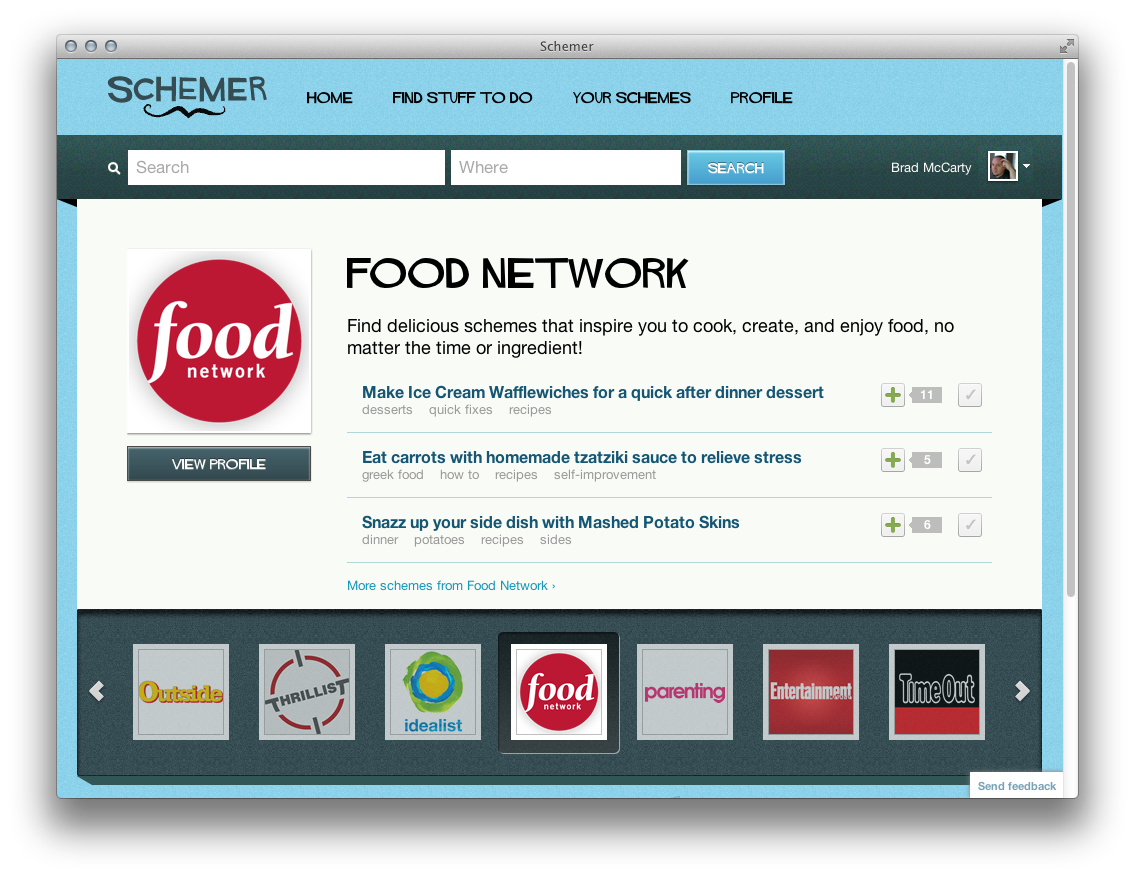
But that Zagat info isn’t alone. Far from it, in fact. Google has a load of partners with which it is working to provide more diverse suggestions, and that’s another area where Schemer actually does excel. For instance, if you’re a foodie then Food Network has a list of suggestions such as eating carrots with homemade tzatziki sauce, among others. Explorer types might find suggestions from National Geographic, for example, to be more appealing.
Screen Shot 2011 12 11 at 1.58.15 PM 520x401 A video tour of Schemer, Googles solution for finding things to do
What’s interesting is that, as of now, there’s no mobile product for Schemer. Yes, the site does work on mobile, and it renders quite well in Mobile Safari as well as the native Android browser. But in both of these you’re given a warning banner across the top, telling you to use Chrome or Firefox. That lack of a legitimate mobile product for schemer can cause a big issue, especially since Foursquare’s newly-released Radar function serves much of the same ability, and it does so primarily via mobile.
I did take a look at the inside of Schemer, and I recorded it so that you could see it for yourself. As I said, it’s an invitation-only beta right now, but this link should get 20 of you in the door. Alternately, there’s a post from the team over on Google+, where you’re instructed to add the team to a circle, then sign up on Schemer.com to get an invitation.


So what are your thoughts? Is Schemer something that you’ll use, or do you already have your preferred methods for finding things to do? Is Google’s offering into the bucket list, induced-serendipity market too late or does it have a fighting chance? Sound off in the comments.

Look out tab bar: Get ready for Path’s sharing UI to be everywhere

If you’ve used the new Path app for iOS or Android, then you’re probably aware that the interface design of the app is second to none. It’s friendly, interactive and emotive without being twitchy and flashy and it invites use with its clever animated ‘share’ button.
The Path sharing UI is nothing like the bottom-dwelling tab bar that is persistent across many, many app UI designs. This can be found in a huge array of apps (especially on iOS) like Twitter and Instagram and can make one-handed operation a bit more difficult than it needs to be. It’s also pretty fidgety when it comes to accuracy, it’s not unusual to hit a wrong tab first, before stabbing the right one.
Screen Shot 2011 12 04 at 1.03.02 PM 520x260 Look out tab bar: Get ready for Paths sharing UI to be everywhere
The Path sharing UI is a different beast. The button hovers in the lower left corner of the screen, with the universal ‘+’ symbol indicating that it can be used to add things. What you can add is a mystery until you tap the button, at which a nicely tuned animation rotates it to an ‘x’ (which indicates the ability to close it or make it go away).
photo 1 520x780 Look out tab bar: Get ready for Paths sharing UI to be everywhere
Round sharing buttons, which are just enough smaller than the main button to indicate that they are children, fly out, rotating a quarter turn counter-clockwise. This gives them a floating appearance, enhanced by a slight bounce as they reach the constraint.
Once the buttons are out, they’re a natural thumb’s reach from the corner of the device and, at least in my experience using the app, seem to lead to a lot fewer mistaken touches.
On the way back in, these buttons bounce back outwards, spinning at a higher frequency and traveling faster, giving it a snappier feel.
When a new, flashy and obviously effective sharing UI pops up, it tends to get passed around, analyzed and deconstructed by the design community, but the speed at which this is happening with the Path UI is pretty astounding. Designer Jon Gold pointed out that some of the examples are very smooth already.
Whether created using native CoreAnimation, CSS and web technologies, designers are getting excited about it. Some have posted their source code for others to refine and play with. The design-sharing site Dribbble is always a good place to take the pulse of trends like this and there are a half-dozen examples of people playing with it on there already.
This doesn’t mean that the tab UI is on the outs completely yet, and, as Gold points out, it could just be people riffing, but the Path UI is definitely making its mark. “I love it,” says Gold, adding, “hopefully people won’t rip it off too much and rather use it as a kick to be more experimental in their work.”
It would be a shame to see an exact clone of the Path UI suddenly pop up in dozens of apps, although I’m not writing that off as a possibility, but it would be a joy to see it become an inspiration for those looking to move beyond the tab bar in their own apps.
And, who knows, maybe you’ll see the UI in use on your favorite social network if Path ends up as another Facebook acquisition on the way to improving its mobile fortunes.

8 Ways the iPhone brings us to different worlds with augmented reality

The App Store is littered with augmented reality apps, and it’s with good reason. The idea of projecting a virtual world into our everyday lives feels magical to almost anyone. Couple this with the ease of Apple’s app store and it’s no wonder this genera of apps has been selling like hotcakes.
But the innovations of augmented reality are just beginning. Someday, it could become a seamless experience, where you’ll look out into the world and intuitively filter through a mass of information to join the virtual world with your own interactive reality. Alas, for now we are limited to devices like the iPhone, which has been the platform for many interesting experiments in AR. Some are novel. Some are kind of stupid. But some are amazing, and offer up a glimpse at the future of gaming and entertainment. Here’s a look inside the world of augmented reality available on the iPhone.

1. Dimensions: The Sonic Adventure Game

Dimensions, the sonic adventure game by RjDj, might be the most innovative iPhone game you will every play. It certainly is the craziest, most experimental game I’ve seen in recent years, let alone on a mobile device. RjDj, also the makers of Inception the App, insists that they “don’t do apps. They craft sonic experiences,” and they do a damn good job of it too.
But what makes this game so mind blowing is how greatly it deviates from the norm. Dimensions is part game, part soundtrack for your life and part science experiment. The gameplay happens right in the middle of your own life, and reacts to your surroundings. Learn more via their site and the video below.

2. Sky Chart and 3. Star Walk

Sky Chart and Star Walk are both amazing apps for anyone remotely interested in astronomy. Picture an immersive, interactive experience for staring into the stars — something that used to be impossible for me to do while living in NYC. Simply launch either app, turn your lights off and move around to learn about the constellations told in stories throughout our history, right from the sky. Both apps come with night vision settings for indoor and outdoor use, and Star Walk is particularly informative.

4. Colorblind Vision

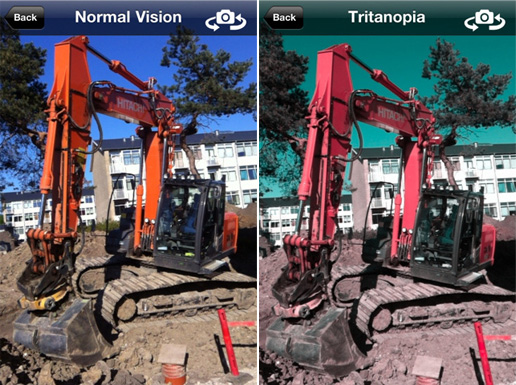
Colorblind Vision, created by Simon Strandgaard, is a simple yet informative app that lets you look at the world through colorblind eyes. The app includes all types of colorblindness, including Deuteranopia (green weakness), which occurs in 5% of males, and the highly rare Achromatopsia (full colorblindness).
colorblind 8 Ways the iPhone brings us to different worlds with augmented reality

5. Sky Siege 3D

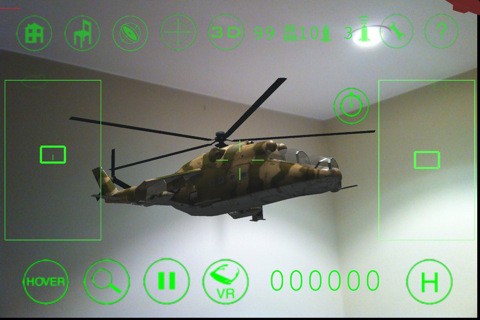
Sky Siege 3D takes a first person shooter to the next level. It lets you “experience an intense aerial assault in your own living room,” so expect to see enemy helicopters flying by your TV set. Overall, it’s a fun and novel way to take a peek at the way developers are playing with augmented reality.

6. Laser Tag

I have always loved Laser Tag, and now I can cary the game around in my pocket. Grab a friend, download the app and turn of the lights. The game uses your iPhone as your target and gun.
In two player mode, the other person’s phone will vibrate and look ‘damaged’ when they’ve been hit. At the end of the game your scores and stats will automatically show up on each other’s device.
In group mode, everyone should begin at the same time then compare hits, misses, scores, and achievements at the end.

7. Cyborg Vision

We covered Cyborg Vision back when it was Terminator Vision at Hackday.tv. Haris Amin and Richard Cameron teamed up to develop this app using Face.com’s API. The app lets you detect your Facebook friends and view their information overlaid on a blood red screen. If you were worried about Google turning into Skynet, you can now rest knowing that a terminator-like experience is on the way.

8. Blippar

Even brands are taking advantage of augmented reality, through Blippar, the first universal augmented reality platform aimed at advertisers. Blippar has already partnered with Dublin newspaper Metro Herald and local TV show FYI to launch what it’s calling “the world’s first fully augmented reality newspaper”. Blippar has also worked with brands such as Marmite.
What do you think of augmented reality so far? Obviously, we’re a far cry away from hyper-realistic experiences, but do you think this is the future of gaming and entertainment? Let us know your thoughts in the comments below!

Saturday, December 10, 2011

WebOS lives! HP decides to open source the platform

After on-again, off-again news about the webOS mobile platform, HP has come to a final decision: WebOS will be offered to the open source community. HP will still be involved in the platform to help developers and aid in governance for webOS. The choice effectively gives a third life to the platform, first developed by Palm and later purchased by HP.
In a press release sharing the news, HP CEO Meg Whitman touts the mobile platform as robust enough to power future devices:
[W]ebOS is the only platform designed from the ground up to be mobile, cloud-connected and scalable. By contributing this innovation, HP unleashes the creativity of the open source community to advance a new generation of applications and devices.
HP spent $1.2 billion to acquire Palm and its webOS resources in April, 2010, but the investment hasn’t paid off. It took more than a year for the company to design and build the HP TouchPad tablet running webOS, which was never considered successful. At least not until the price was drastically reduced to $99 when HP decided to leave the tablet market it only just entered.
With the operating system now to be open sourced, we could see device makers build new phones or tablets with it, as no licensing fee would be required. This is similar to Google Android, but the challenge for webOS is the ecosystem. Android has become the most-used smartphone platform to date and developers are writing apps for it, as well as Apple’s iOS devices. WebOS still has many fans — myself included — but doesn’t have as strong of an ecosystem.
It’s also possible that HP itself could jump back in the mobile hardware game, but of course there are no guarantees. My suspicion is that this scenario would only play out if the open source community gave HP a reason to do so by maturing the platform and third-party software offerings.
Other hardware makers could play a wait-and-see game too, although I’d rule Samsung out as using webOS: The company has quietly developed its own Bada OS, which is gaining an audience and gives Samsung a backup plan for Android. Not that it needs one yet.

Check out how Facebook, Google+ and YouTube would have looked & worked in 1997

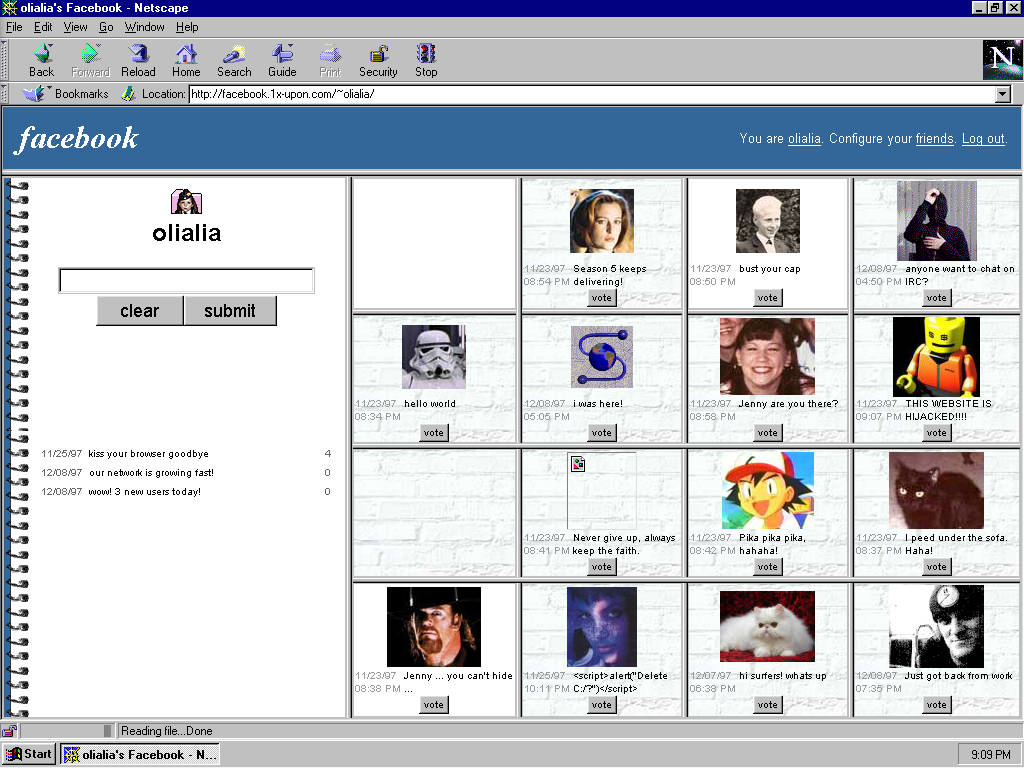
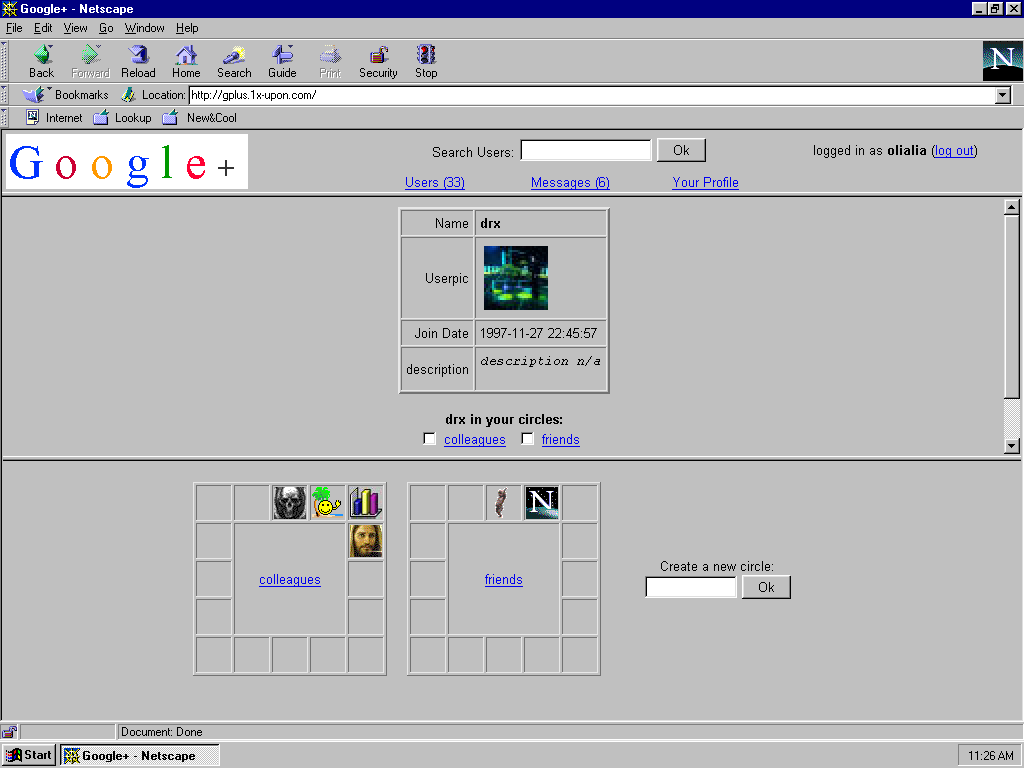
Once Upon is a brilliant project that has recreated three popular sites from today as if they were built in the dial-up era, in 1997.
Witness Facebook, with no real-names policy and photos displayed in an ugly grey table; YouTube, with a choice of encoding options to select before you watch a video, and Google+, where Circles of contacts are displayed as far easier to render squares. Be prepared for a wait though – the recreations are limited to 8kbps transfer speeds, as if you were loading it on a particularly slow dial-up connection.
This is perhaps the most extreme version of Web nostalgia we’ve seen. On a related note, these imaginings of what online social networking would have been like in centuries gone by are worth a look. Also, our report on 10 websites that changed the world is worth reading- they’re not what you might expect.
➤ Once Upon
facebook 05 520x390 Check out how Facebook, Google+ and YouTube would have looked & worked in 1997
youtube 03 520x390 Check out how Facebook, Google+ and YouTube would have looked & worked in 1997
gplus 04 520x390 Check out how Facebook, Google+ and YouTube would have looked & worked in 1997

Labels